
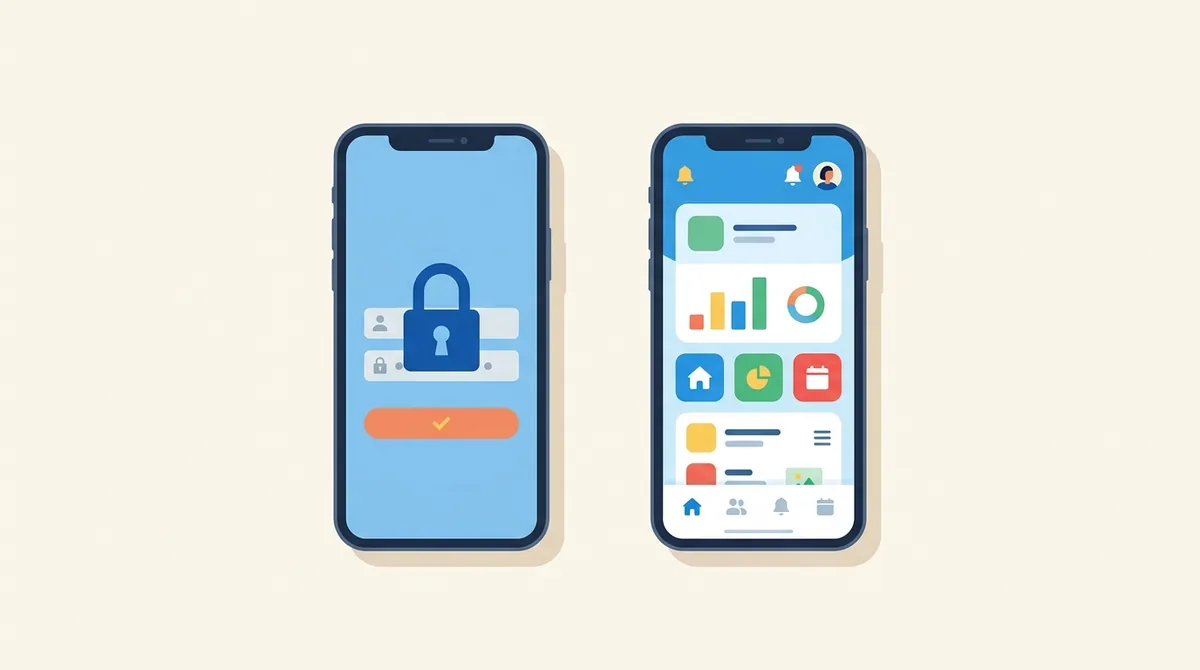
Never make the sign in screen your first screenshot. Apple's review guidelines say screenshots should show the app in use rather than the title art, login page or splash screen. Build a seeded demo account with realistic content, capture the app doing its job from inside, and keep the login out of the set entirely.
Can a screenshot show the login screen?
Quick answer: No, and it isn't only bad practice. Apple's review guidelines say screenshots should show the app in use, and they name the login page specifically as something a screenshot shouldn't merely show. So a set that opens on a sign in form is a rejection risk as well as a conversion problem.
The fix is a seeded demo account. You capture from inside the app, with content that looks like a real person's.
I read Apple's review guidelines directly for the wording, and I checked what the same rule means for the first image in a set.
What Apple actually says
It's worth having the sentence rather than a paraphrase, because it's unusually specific.
The accurate metadata section says screenshots should show the app in use, and not merely the title art, login page, or splash screen. It then allows text and image overlays on top.
So captions are fine. A login page as your screenshot is not.
That single line settles most arguments inside a team about whether the sign in screen is worth a slot.
You can read it in Apple's review guidelines, where it sits alongside the rule about providing a demo account for review.
Why the login screenshot fails anyway
Even without the rule, it's the worst possible opener.
A store visitor is deciding whether your app is worth the next thirty seconds. A sign in form answers no question they have.
Worse, it tells them there's work before there's value. That's the exact objection your listing exists to remove.
And it looks identical to every other app's login screen, so it also tells them nothing about what yours does.
Show the thing they came for. The sign in will still be there after they install.
Build a seeded demo account first
This is the practical answer and it's a job worth doing properly once.
Create an account that exists only for screenshots. Fill it with content that looks like a real user after a few weeks: a handful of entries, some history, a sensible name.
Then capture every screen from that account.
Keep the account. Next release you log back in and reshoot the same screens without rebuilding the data.
Apple asks for a demo account for review anyway, so this is a job you were going to do. Doing it well gives you both.
The empty state trap
This is the mistake that survives the login fix.
You make a fresh account, open the app, and screenshot it. The result is a beautiful, empty screen that says no items yet.
It's honest. It's also a picture of your app doing nothing, which is the least persuasive image available.
So seed the account before you shoot. A budgeting app needs transactions in it. Put a few logged workouts into a fitness app. For a notes app, write some notes.
The content doesn't need to be exciting. It needs to exist.
Seeded is not the same as fabricated
There's a line here and it's worth naming, because the two look similar.
Populating a demo account with plausible content is normal. Every app does it and nobody objects, because it shows the app working the way it works.
Inventing numbers about your business is different. A fake five star review inside the screenshot, an invented user count, a made up leaderboard position.
Those are claims about you rather than demonstrations of the app, and both stores treat them as misleading.
So make the data realistic, and make anything that looks like a statistic true. We covered which claims are actually banned in words banned from store screenshots.
Real names and real faces
One thing to check before you export.
If your seeded account shows other people, those are real names and real photographs unless you made them up deliberately.
A chat app screenshot with a colleague's actual name and picture in it ships that person's details to every store visitor.
Use invented names and generic avatars in the demo account, and check the corners of every screenshot for anything that slipped through.
Email addresses, phone numbers and location pins are the three that hide in plain sight.
Onboarding carousels are not screenshots
A related mistake, and it is easy to make because the screens already look designed.
Your app probably opens with two or three welcome slides, each with an illustration and a line of copy. They look like finished marketing images, so people upload them.
But an onboarding slide is a picture of your app not working yet. It shows the promise, not the product.
Apple names the splash screen for the same reason. The store visitor wants to see the thing, not the introduction to the thing.
If a line from your onboarding is genuinely good, use it as the caption over a real screen instead. That keeps the writing and loses the problem.
If the whole app is behind a paywall
Some apps have no free tier at all, and the honest approach is different from hiding it.
Show the app working. That's still what the screenshots are for.
But be plain about the paid model rather than implying a free one. A caption that mentions the subscription somewhere in the set is better than a surprised user writing a one star review about it.
The store also shows in app purchase information on the listing, so the model isn't a secret you're keeping anyway.
What you shouldn't do is make the paywall itself your opening image. It's the same mistake as the login screen with a price on it.
Does your app need the login at all?
Worth asking, because Apple has a view on it.
The guidelines say that if an app doesn't include significant account based features, people should be able to use it without a login.
So a forced sign up on an app that doesn't need one is a policy question as well as a growth one.
If you can add a guest mode, your screenshots get easier and your install to first use rate improves at the same time.
That's a product change rather than a design change, and it's usually the bigger win.
The order for a gated app
A structure that works when the app starts behind a wall:
- Image one: the core screen, populated, doing the main job.
- Image two: the single feature people came looking for.
- Image three: the result or output the app produces.
- Image four: whatever answers the obvious doubt, such as privacy or offline use.
Notice there's no slot for the login, the splash screen or the onboarding carousel.
Those are all screens your user will meet soon enough. None of them helps them decide. Our guide to the first screenshot goes deeper on the opener.
Two accounts beat one
A small habit that saves real time on the second release.
Keep one demo account for App Review, with credentials you hand over in the submission form. Keep a second one for screenshots, seeded and polished.
They drift apart otherwise. A reviewer changes something, deletes a record, leaves a half finished state behind, and your next set of captures has a gap in it.
Two accounts costs nothing and removes that whole class of surprise.
Write both sets of credentials down somewhere the whole team can reach. The person who made them is rarely the person shooting the next set.
Capturing cleanly from a demo account
Two small habits that save a reshoot.
Put the demo device in a clean state before you start. Full battery, strong signal, no notification icons, a sensible time on the clock.
And capture every screen in one sitting, in the same session, so the data stays consistent between images.
Nothing looks worse than a balance of 4,200 rupees in image two and 380 in image three.
Consistency across the set is the detail that makes a listing look designed rather than assembled.
What to do now
Make the demo account today and seed it properly. That's the part everything else waits on.
Then capture four screens from inside the app, with the login nowhere in the set.
Drop them into the editor, frame them and export.
If you want a tidy status bar in every shot, our guide to clean captures covers how to force one.
Frequently asked questions
Can I use my login screen as an app store screenshot?
No. Apple's review guidelines say screenshots should show the app in use and name the login page as something they should not merely show. It is also the weakest possible opener, because it answers no question a store visitor has.
How do I screenshot an app that needs an account?
Create a demo account that exists only for screenshots, seed it with realistic content, and capture every screen from inside it. Keep the account so you can reshoot the same screens next release without rebuilding the data.
Is it allowed to use fake data in screenshots?
Realistic demo content is normal and expected, because it shows the app working. Inventing claims about your business is not. A made up user count, a fabricated review or an invented ranking inside the image is treated as misleading by both stores.
What if my app is completely behind a paywall?
Show the app working anyway, and be plain somewhere in the set about the subscription rather than implying a free tier. Do not make the paywall your opening image. The store already displays in app purchase information on the listing.
Should my screenshots show an empty app?
No. A fresh account produces a screen that says no items yet, which is a picture of your app doing nothing. Seed the demo account with a few entries and some history before you capture anything. Our guide to [screenshot mistakes](/blog/app-screenshot-design-mistakes-fix-fast-2026) covers the other common ones.
Does my app need a login at all?
Apple's guidelines say that if an app does not include significant account based features, people should be able to use it without a login. Adding a guest mode makes the screenshots easier and usually improves how many installs turn into first use.
Build the mockup in your browser.
Drop a screenshot into a real device frame and export at the exact store size — free, no signup.