
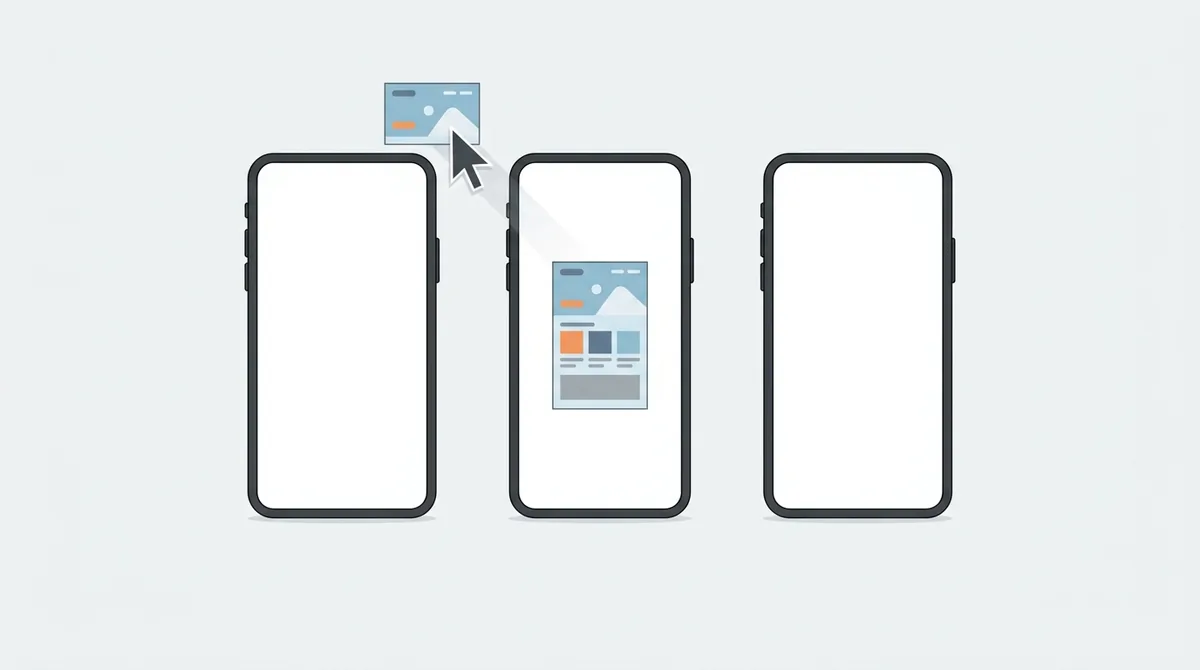
A free mockup generator is worth using if it exports at the exact size Google Play asks for, keeps your screenshots on your own device, and lets you reuse the same template next release. Anything that watermarks the export, forces an account, or hands you a size the store rejects costs you more time than it saves.
What makes a mockup generator worth using?
Quick answer: It has to export at the exact size Google Play accepts, it has to keep your screenshots on your machine, and it has to let you rebuild the same set next release without starting over. Everything else is decoration.
A watermark on the export, a forced sign up, or a canvas that doesn't match the store spec are all reasons to close the tab immediately.
I read Google's own asset requirements before writing this, and I counted the device frames in our tool so the number here is real rather than remembered.
The export size is the whole game
Most free tools look fine until the upload.
Google Play wants phone screenshots at a minimum of 1080 pixels on the short side, in a portrait or landscape ratio it accepts, as JPEG or 24 bit PNG with no transparency.
A generator that hands you a 900 pixel wide PNG has wasted your evening. The Play Console will simply refuse it.
So before you design anything, export one test image and upload it. Five minutes at the start saves an hour at the end.
The official numbers live in Google's asset requirements, and they're worth reading once rather than trusting a blog's summary.
Watermarks and the free tier trap
This is the commonest way a free generator isn't free.
You build eight screenshots, you're happy with them, and the export carries a logo in the corner. Removing it costs a subscription.
That's a fair business model and it's also a waste of your evening if nobody told you up front.
So check the export before you invest the work. Make one throwaway image with one frame and download it.
If it comes out clean, carry on. If it doesn't, you've lost two minutes instead of two hours.
Does your screenshot leave your machine?
Worth thinking about for thirty seconds, because a pre release app screen is a real thing to protect.
Many online generators upload your image to a server, render it there and send it back. That's how they work, and it isn't sinister.
But if your screenshots show an unreleased feature, a customer's data or a design nobody has seen, that's a copy of it sitting on somebody else's computer.
Tools that render in the browser never send the file anywhere. Ours is one of them, which is also why it works with the wifi off.
If you're not sure which kind you're using, turn off your connection and try to make one image. The answer arrives immediately.
Frames are not decoration
The device frame does one specific job. It tells the viewer at a glance that this is an app, running on a phone, rather than a poster.
That read happens in well under a second on a crowded store page.
What matters is that the frame matches the era of your screenshot. A 2019 frame with wide bezels around a modern Material screen looks wrong even to people who can't say why.
Our frames page lists fourteen device frames covering phones, tablets, laptops and desktops.
Use the same frame across the whole set. Mixing a Pixel and an iPhone in one Play Store listing is the sort of detail that quietly reads as careless.
Batch is the feature that pays you back
Everyone shops for frames and backgrounds. The feature that actually saves time is batch.
Here is why. You don't build a screenshot set once. You build it at launch, then again after a redesign, then again for a seasonal push, then again when a reviewer complains the third image is confusing.
If each rebuild means placing eight images by hand, you'll stop doing it.
Set the template once, drop the new captures in, and the whole set comes out matching. That turns a listing refresh from an afternoon into ten minutes.
It's also the only realistic way to keep a listing current across several languages.
Backgrounds: the part people overwork
A background exists to separate your phone from the white of the store page. That is its entire job.
A flat colour does it. So does a two colour gradient, which looks a little more considered. A photograph behind the phone usually does not, because it competes with the screen you are trying to show.
The test is quick. Squint at the finished image. If your eye lands on the background before the phone, the background is wrong.
Keep the same background across all eight images too. A set that shifts colour halfway through reads as two different apps.
And check it in dark mode. A pale gradient that looks clean on a white page can vanish on a dark one.
Text layers, and the honest limit
Almost every generator lets you put a caption on the image. Here's the part that decides whether it works.
Your caption gets read at thumbnail size first, in a search result, on a phone, by somebody who is not concentrating.
So font size beats font choice, and short beats clever. Three to five words is the practical range.
Eight fonts is plenty for this job. Forty fonts is a way to spend an hour choosing.
The thing to test is simple. Shrink your finished image to the size of a thumbnail and see whether the caption still reads.
What a generator cannot do for you
Two honest limits, because nothing on this page is worth reading if it oversells.
A generator will not decide what your screenshots should say. That's a product decision and it's the part that actually moves installs.
It will also not fix a screen that's confusing on its own. A frame and a gradient around a cluttered screen produce a well presented cluttered screen.
So capture the app doing one clear thing, then decorate.
We went through the capture side in our guide to Play Store screenshot sizes.
A workflow that takes ten minutes
This is the order that wastes the least time:
- Capture eight clean screens from the app, at full device resolution.
- Write the eight captions in a text file first, before you open any design tool.
- Build the first image completely, then export it and upload it to the Play Console as a test.
- Once that upload passes, build the other seven against the same template.
- Export the whole set, then shrink them all to thumbnail size and read them.
The test upload at step three is the part people skip, and it's the part that prevents the rebuild.
Doing the captions before the design also stops you writing copy to fit a box.
Keeping the project so next release is easy
This one is boring and it's the difference between a listing you update and a listing you don't.
Whatever tool you use, find out how you save the work rather than just the images.
If the only output is eight PNG files, then next release you're rebuilding from nothing. If the project itself saves, you're swapping images into a template.
Ours saves as you go and exports the whole project as a single file you can reopen on another machine.
Whatever you choose, put that file somewhere you'll find it in six months. Not the downloads folder.
Free, and what that usually means
Free tools pay for themselves in one of four ways, and it's fair to know which you're in.
Some charge for the export, which you find out at the end. Others charge for the good frames, or run advertising beside the editor. And a few are free because they run entirely in your browser and cost the owner almost nothing to serve.
That last one is the model with the fewest surprises, and it's ours.
None of those models is wrong. The problem is only ever finding out late.
So test the export first. It's the single question that separates the four.
Start with one screenshot
Don't plan the whole set before you've made one image.
Open the editor, drop in your best screen, pick a frame and a background, and export it.
Upload that one file to the Play Console and confirm it's accepted.
Then build the rest, knowing the shape of the thing already works.
Frequently asked questions
Do I need Photoshop to make Play Store screenshots?
No. A browser based generator covers the whole job for a store listing: device frame, background, caption and an export at the size Google Play accepts. Photoshop is useful when you want custom illustration inside the frame, not for the framing itself.
What size should a Play Store screenshot be?
At least 1080 pixels on the short side, in a ratio Google accepts, as JPEG or 24 bit PNG with no transparency. Export one test image and upload it to the Play Console before you build the rest of the set.
Are free mockup generators watermarked?
Some are, and you usually find out at the export step after the work is done. Make one throwaway image and download it before you invest an evening. Two minutes there saves the rebuild.
Do my screenshots get uploaded to a server?
It depends on the tool. Many render on a server, which means a copy of your screen sits on somebody else's machine. Browser based tools never send the file. Switch your connection off and try to make an image, and you will know which kind you have.
Should every screenshot use the same device frame?
Yes, within one store listing. Mixing an iPhone and a Pixel in the same Play Store set reads as careless even to people who cannot say why. Our [device frames guide](/blog/device-frames-for-app-mockups) covers how to choose one.
How many screenshots does a Play Store listing need?
Google accepts up to eight per device type and asks for at least four for a complete listing. Most people never scroll past the third, so the first three carry nearly all the work.
Build the mockup in your browser.
Drop a screenshot into a real device frame and export at the exact store size — free, no signup.